Online Data Access
Accessing Data via Online InventoryPlus (my.inventoryplus.in)
With Online InventoryPlus, business owners and managers can stay connected to their business operations anytime, anywhere, using any desktop web browser, tablet, or smartphone.
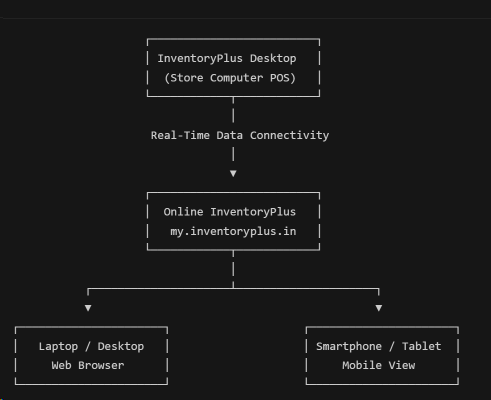
First-Time Login & Portal Access Guide:
- Open the Web Portal:
- Launch any browser (Chrome, Safari, Edge, Firefox) on your phone, tablet, or computer.
- Visit my.inventoryplus.in.
- Step 1: Business Activation & Device Registration (First-Time Only):
- If accessing Online InventoryPlus for the first time on a new mobile phone, tablet, or web browser, you must first register your business on that device.
- Click Activate Business or First-Time Setup.
- Registration ID: Enter your official business license Registration ID.
- Activation Code: Enter your confidential Activation Code (received in your license confirmation email or invoice copy).
- Click Register Business. This securely registers your device and links your web browser/mobile app to your company's online data slot.
- Step 2: User Login (InventoryPlus Application Credentials):
- Once your business is activated on the device, the login screen will display your company profile.
- Username: Enter your InventoryPlus Desktop application username (e.g. admin or your assigned cashier username configured in your desktop app).
- Password: Enter your InventoryPlus Desktop application password.
- Click Sign In.
- Step 3: Select Active Store Profile:
- If you manage multiple company profiles or store branches under one registration ID, select your active company branch/store from the dashboard dropdown to view live reports and inventory.